

Adding Lead Information in Zoho CRM and MasterList
- Administrator

- Aug 3, 2023
- 7 min read
Updated: Dec 4
Keywords: lead, new student, hot lead, creating student record, creating lead record, audio notes, transcribe, triggering automation, contact form leads, unpaid registration, paid registration, sales contact
ADDING STUDENT LEAD INFORMATION IN ZOHO CRM
The Student Support Specialist is required to watch the training video linked below to understand the correct process for adding student lead information into Zoho CRM.
Video by Louise :)
⛳ How we get our leads
We have 5 ways to get new lead information:
Leads call the dance line, which connects them directly to Danny
Leads send us an inquiry through the contact form or email
Leads register for a program without completing payment
Leads message us through social media channels (e.g., Instagram, Facebook)
Leads find us through external listing platforms such as ClassPass and Eventbrite
Leads hear about us through referrals from friends or current students
Leads discover us through other platforms such as Google, Yelp, ChatGPT and more
To date, we have 4 websites in Los Angeles which we use as lead source:
⛳ Creating new student/lead record
Go to "Students" tab in Zoho CRM.
Click "Create Student" button on the upper right corner.
Or you can also click the "+" icon and create student record from there.
Start adding lead information then save.


⛳ Updating individual student record
Select the student record you want to update.
Click the field you want to update. When done, select the blue check mark icon to save.
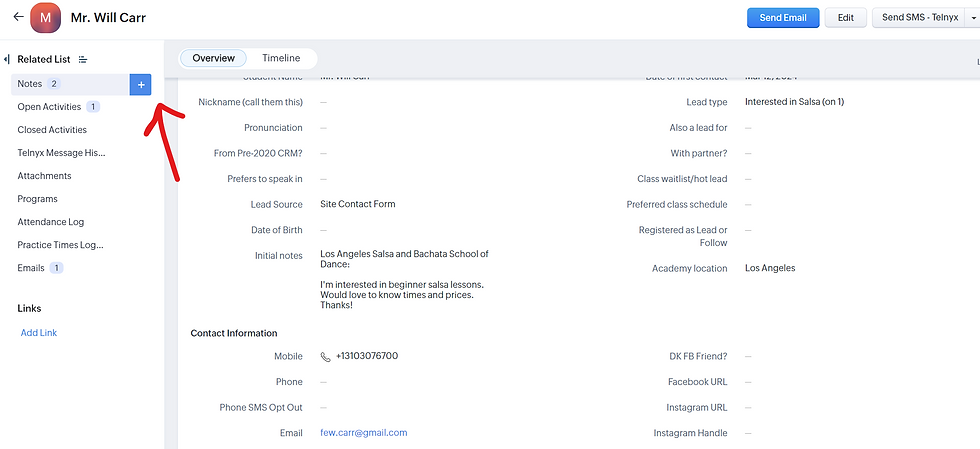
To add notes, scroll down to the bottom of the student record until you find the Notes section. Or you can also hover your mouse pointer to "Notes" on the left sidebar entitled Related List and click the "+" sign.
All new unpaid leads will need to have an action plan. Go to Open Activities section and click "Schedule Call" to create reminder for follow up.



⛳ Transcribing audio notes after initial sales contact
Initial sales contact occurs when Danny or a sales representative speaks with a lead over the phone. After the call, Danny usually sends a voice message update in the Student Support channel on Slack.
To process this update:
Use Slack’s built-in transcription feature to view the message as text.
Copy the transcription, remove any time stamps and carefully proofread it to ensure it accurately reflects what was said in the voice message.
Add the final, cleaned-up transcription to the Notes section of the student’s profile in CRM.
Apply all necessary updates to the student’s record as mentioned in the voice message or set up follow up calls for future action plans.


⛳ Marking a student as hot lead
We classify a student lead as "Hot lead" when they're 80% close to paying/joining the program in full. There are two steps to mark a lead as hot lead.
Using Tags ‼️ (as of 2025, this step is no longer part of our process) ‼️
Go to the student's CRM record
In the header section, under the student name, click "Add Tags"
Select an existing tag or create a new tag in this format: YYYY-S# Hot Leads - LA (e.g. if the hot lead is for Season 2 of 2024, tag is "2024S2 Hot leads-LA")
Using CRM field
Go to the student's CRM record
Edit "Class waitlist/hot lead" field and write the program code they're hot lead for (e.g. if they're hot lead for Bachata 102b Sundays program for 2025 Season 3, write "LA-2025S3 Bachata 102b Sundays")

Updates:
In August 2024, when a hot lead (excluding unpaid registrations) is added in our Masterlist, please always include a note briefly specifying the reason they made it to our Masterlist
For unpaid registrations, we should also include a note indicating the status as "unpaid (old or new student)." This helps Danny and the team distinguish between students who have partially registered and those who are hot leads but have not yet registered.
Following these steps helps us when sending campaigns or follow-ups, as it provides context and allows us to communicate with each student more effectively.
2025 Masterlist

⛳ Triggering automatic replies to new contact form leads
When we receive new leads from site contact form, we want to automatically send them an email response to text Danny or the sales rep so they can get connected. If the lead takes an action afterwards, it just means that they are 100% serious about joining the class, making them a very hot lead who just needs a little more push to convert them from being a prospect into a paying student.
Since we have multiple websites for lead generation, the automated emails should come from the address of the academy that they originally reached out to. We have CRM workflows already set up to make that happen. It just needs to be triggered so it can send the right email to the new lead.
To review or manage these workflows:
Go to Settings > Workflow Rules (under the Automation tab)
Select the relevant Contact Form workflow you’d like to view or trigger
Trigger steps
Please follow these steps carefully to ensure the automation is triggered correctly:
Go to the student record and click "Edit"
Lead Source should be modified to "Site Contact Form"
Update "Date of First Contact"
In the Initial Notes field, make sure the content follows the exact format of the auto-forwarded lead information we receive in the #leads-for-dk channel on Slack (see screenshot below)
Click Save

Note: Steps 1-4 require content modification. This means you need to change the fields from their current state to something new. For example, if "Site Contact Form" is already selected as the Lead Source before you click Edit, the trigger won’t fire unless you remove it and the other fields during the same edit session.
If for some reason the automation doesn’t trigger, you can try again by deleting all student info—except the student name, academy location and email, then follow the 5 steps above again. That should do the trick!
This automation trigger applies to student with the following field setting:
1. Academy location is "Los Angeles"
2. Paid 2021+ Classes is "Empty"
3. Lead Source is "Site Contact Form"
4. Date of first contact is "Current Week"
5. Initial notes contains the name of the academy they've reached out to
Once the trigger fires, the new lead will receive the email and a follow up call will be automatically scheduled in CRM. You may track if the new lead has opened/read the email by scrolling to the bottom part of the student's CRM record and view the "Emails" section. To see how this works in real-time, you may create a test record in Zoho CRM and apply the above trigger steps.
⛳ Fields to update when handling registrations in Zoho CRM
Unpaid Registration:
Student Name
Lead Source
Referred By (if referred)
Initial Notes
Date/Time of First Contact
Lead Type
Preferred Class Schedule (if mentioned)
Registered as Lead or Follow
Mobile
Email
Unpaid 2021+ Classes
Date Last Registered
Update Masterlist:
Program
Student Name
Lead/Follow
Status
Agreement Date: when they registered
Notes
Lead Source: "How did you find us"
Added by:
Date Added
If mentioned, also update: Address, Partner and Work information
Paid Registration:
Includes all of the above plus the following additional fields:
Payment Plan (if a 2-4 payment plan was selected)
Paid 2021+ Classes (instead of Unpaid and add the program code under this field and delete the same code from the Unpaid 2021+ Classes once it's transferred)
Payment Method Used
Date Last Registered (double-check this field even if already filled)
Update Masterlist:
Program
Student Name
Lead/Follow
Status
Amount Paid (not including the 3% charge for Stripe payments). Always check the site price and the amount they sent in Stripe, and deduct the 3% charge
Payment Plan
Payment Channel
Agreement Date: when they registered
Pmt Date: when they paid
Notes
Lead Source: "How did you find us"
Added by:
Date Added
Possible additional fields to update:
If the student spoke with Danny (applies only to new or recent leads)
Date/Time Lead Contacted by Sales Rep
Sales Rep (indicate "Danny")
If registering for a trial class (instead of a full program)
Class to Try
Date of Class Trial (instead of Paid 2021+ Classes)
Then make sure to create a follow-up call the day after the trial to ask if they want to enroll fully.
Important Notes (New process as of November 24, 2025)
In the Paid 2021+ Classes Field:
if it's a Salsa 101 student, add these: ; Social Dance Etiquette and Norms; Repetition For Mastery - Salsa 101; Start Here - App Tutorials
if it's NOT a Salsa 101 student, add these: ; Social Dance Etiquette and Norms; Start Here - App Tutorials
New Policy:
Any student can repeat a 101 program for $197 (not 102 - just 101).
Concurrent 101 Programs Discount — Quick Checklist for SS:
Offer: If a student takes Salsa 101 and Bachata 101 at the same time (any overlap), they get $100 off the second program. (Not on the website; DK announces it in class.)
When a student texts “How do I get this?” — reply with these 4 steps:
Register for a 2nd Program - eg. currently enrolled in Salsa 101 - register for Bachata 101 (the second program)
In Notes/Comments, type: “Salsa 101 + Bachata 101 at the same time — $100 off.”
On the Payment page, do not open “Choose your extra discount.”
Scroll to Custom amount.
In Custom amount, enter: [current homepage price] − 100, then pay.
Heads-up (common confusion): The dropdown won’t show the $100 off for the extra program. Tell them to use Custom amount as above.
⛳ What to Update when a student is transferred to another class
Make sure it is approved by DK.
Update their records on both the Masterlist and Zoho CRM
The program and notes
Don't forget to check if they are on the correct class list in the attendance.
Check the SOP for setting up attendances HERE
Updated: November 6, 2025
By: SS Anna :)


